
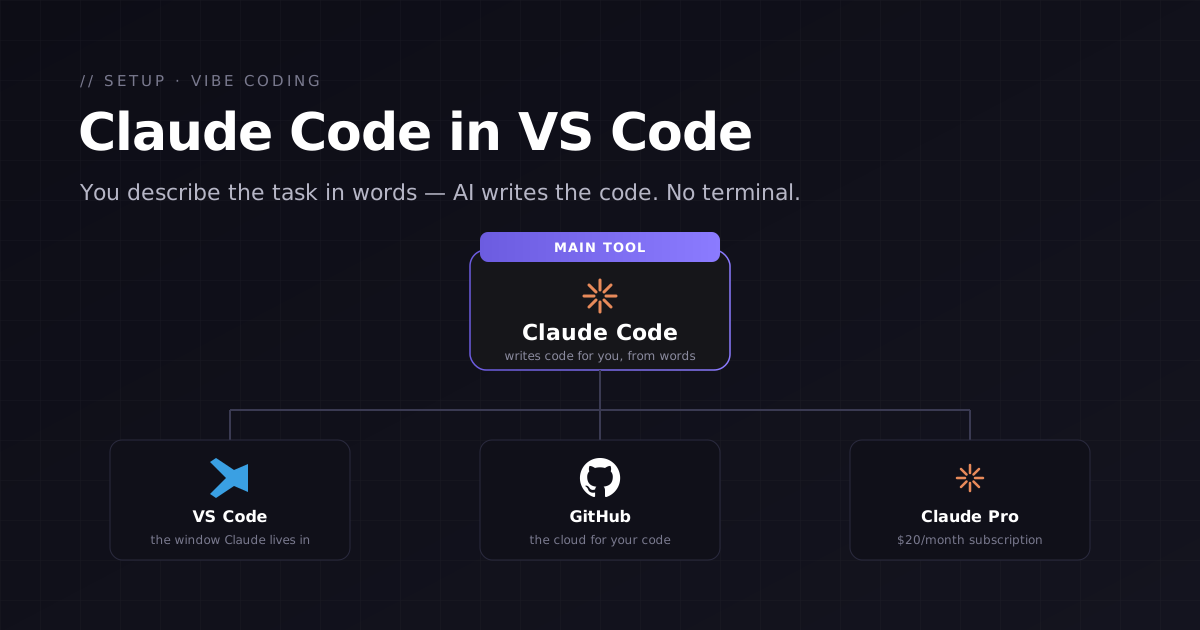
This guide is for people who have never written code but want to build websites and apps by describing them in plain words — an approach known as vibe coding. We’ll set up just one combo: the VS Code editor with the AI assistant Claude Code inside it. No scary black terminal window — just your mouse, buttons, and a friendly chat. The whole thing takes about an hour.
How to use this guide. First, skim the whole text all the way to the end, then come back and follow the steps exactly in order. Wherever Mac and Windows differ, each step covers them separately.
What we’ll install and why
To “program with words,” you need just three things. Here they are, explained with simple analogies:
- VS Code is like Microsoft Word, but for code. It’s the window you’ll work in.
- Claude Code is an AI assistant that lives inside VS Code. You describe a task in plain words, and it writes the code.
- GitHub is a cloud for code, like Google Drive, but with a history of every change. Your code is stored here, and this is where your site goes live from.
The toolkit itself is free. The only paid part is a Claude Pro subscription — think of it as your AI assistant’s “salary,” about $20/month.
Step 0. Create a Google account (Gmail)
Everything else starts here. Signing up for GitHub and Claude with your Google account is the easiest way — no separate passwords to create and remember. If you already have Gmail, you can skip this step.
Open the sign-up page
Go to accounts.google.com/signup in any browser.
Enter your name and choose an address
Google will suggest available addresses. Pick a calm, “grown-up” one — you’ll be giving it to colleagues and putting it on your resume.
Set a password and verify your phone
Google will text you a code. Enter it, and your inbox is ready.
Tip. Write down your Google login and password somewhere safe (for example, in a passcode-protected note on your phone). From here on, you’ll use this account to sign in to other services.
Step 1. Create a GitHub account with Google
GitHub is the cloud where your code lives. You only need to sign up once.
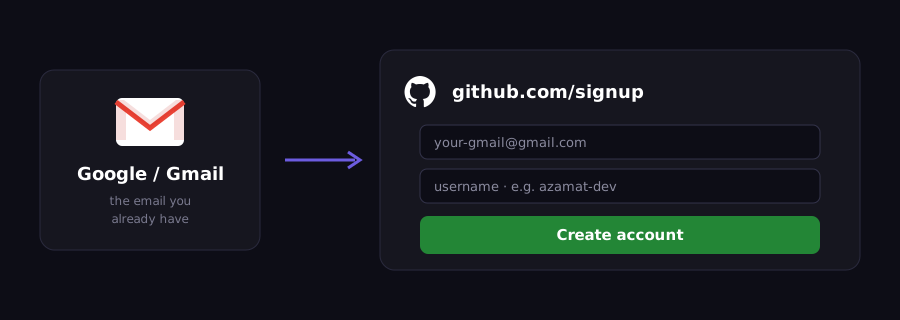
Open github.com/signup
In the email field, enter your Gmail from Step 0.
Choose a username
This name becomes part of your project addresses: github.com/your-username. Keep it short and clear, for example azamat-dev.
Verify your email
GitHub will send a code to your Gmail. Enter it, and your account is ready. Choose the Free plan — it’s enough for the entire course.
Why Gmail matters here. When your GitHub email matches your Google email, signing in to other services (and recovering access if you forget your password) is hassle-free. That’s why it’s best for everyone to have Gmail.
Step 2. Install VS Code
VS Code is a free editor from Microsoft and the most popular one in the world. It’s the window where you’ll see your project and talk to Claude.
Download the installer
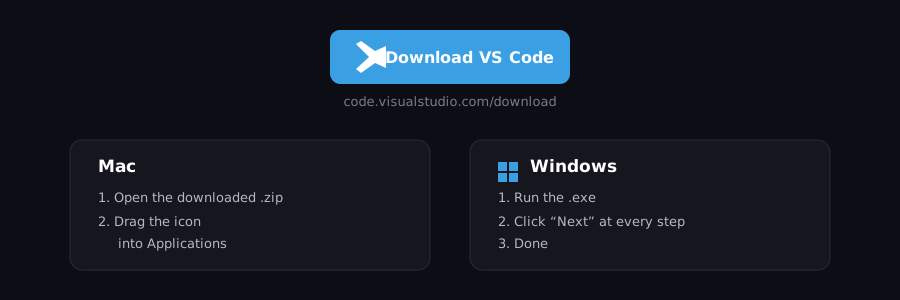
Go to code.visualstudio.com/download and click the big button for your system. The site usually detects on its own whether you’re on a Mac or Windows.
Install it
Mac
Open the downloaded file and drag the VS Code icon into the Applications folder.
▦ Windows
Run the downloaded .exe and click “Next” on every screen — the default settings are fine.
Open VS Code
Launch the app. Project files appear on the left, and the workspace is in the middle. For now, just make sure the editor opens.
Step 3. Install the Claude Code extension
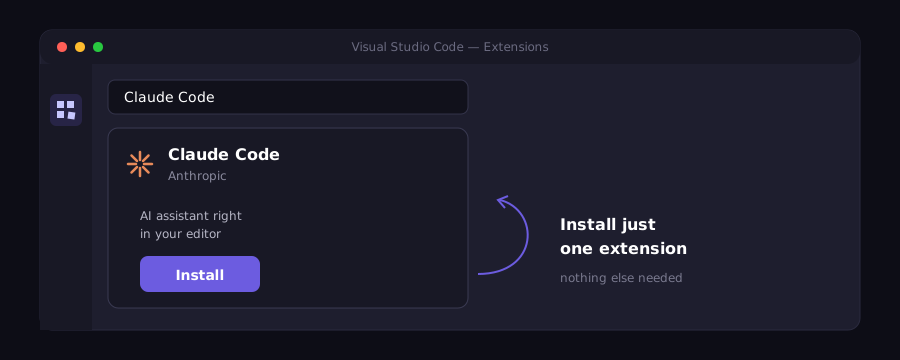
An extension is an add-on for the editor. You need exactly one: Claude Code. It puts an AI assistant right inside the VS Code window.
Open the Extensions panel
On the left side of VS Code, find the icon made of four small squares (Extensions). You can also open it with Cmd+Shift+X on Mac or Ctrl+Shift+X on Windows.
Find Claude Code
Type Claude Code in the search bar. The one you need is by Anthropic.
Click Install
Wait for the installation to finish. You don’t need to install anything else — Claude can format code, find bugs, and save changes on its own.
Don’t install extras. It’s easy for a beginner to get lost among dozens of extensions. Claude Code alone is enough to get started — anything else will only confuse you.
Step 4. Sign in to Claude and subscribe
For the assistant to work, you need a Claude account and a Pro subscription.
Create a Claude account
Go to claude.ai and sign in with Google, using the same Gmail. No separate password needed.
Get Claude Pro
On claude.ai/upgrade, choose the Pro plan (about $20/month). The free plan isn’t enough for real work with Claude Code.
Connect Claude Code to your account
Go back to VS Code, open the Claude Code panel (the spark icon on the left), and click “Sign in.” A browser window will open — confirm the sign-in with the same Claude account.
Paying from Kazakhstan. Kaspi and Halyk cards often don’t go through directly. The usual workaround is a virtual dollar card (Wise, for example) topped up via Kaspi — a completely legal option.
Step 5. Give Claude its first task
You’re all set. Now for the fun part: just ask Claude to do something in plain words.
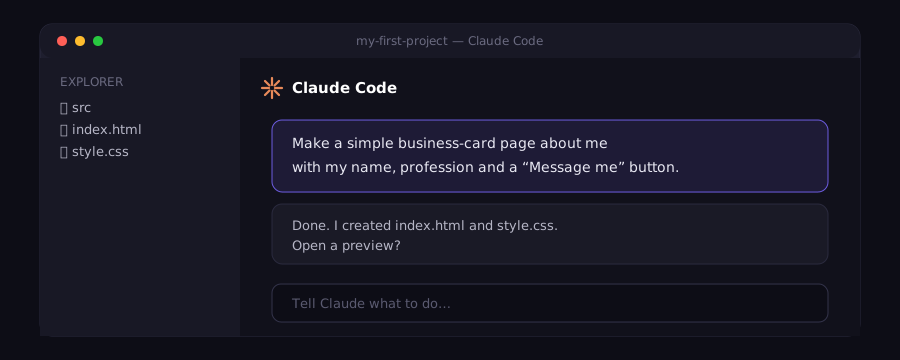
Make a simple business-card page about me: my name, my profession, and a “Message me” button. Then show me how to open it in the browser.
Claude will create the files and tell you how to open a preview. If you want to change something, just say so in your next message, for example:
Make the background dark and the button purple and a bit bigger.
Once you like the result, ask Claude to save it to the GitHub cloud:
Save the project and upload it to my GitHub with a clear description.
The key principle. Don’t be afraid of “dumb” questions or everyday language. That’s exactly what Claude is for: you describe the task in words, and it turns it into code and explains what it did.
Quick checklist
Run through it — if every item is checked, you’re ready to work.
- You have a Google account (Gmail)
- You’ve created a GitHub account with that Gmail
- VS Code is installed (Mac or Windows)
- The Claude Code extension is installed — and nothing else
- You’ve subscribed to Claude Pro and signed in
- Claude has completed your first task, written in plain words